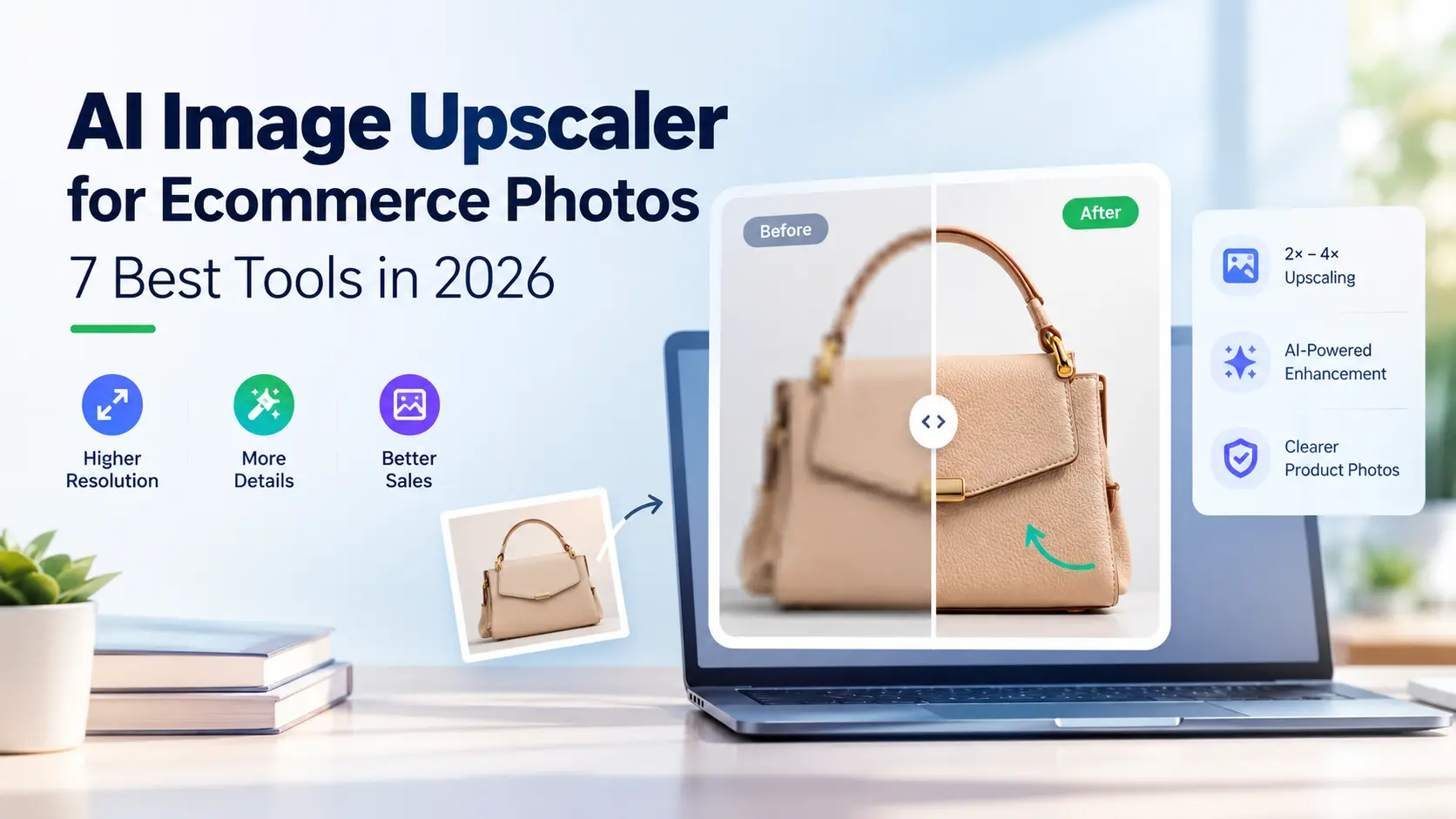
AI Image Upscaler for Ecommerce Photos: 7 Best Tools in 2026
Your supplier sends a 600 × 600 product photo. You upload it to your store, a customer taps to zoom, and the whole thing turns to mush.
That’s the exact problem an AI image upscaler is built for. These tools enlarge an image and try to rebuild sharpness, texture, and edges, so a small or soft photo becomes usable on a product page, in an ad, or in an email.
But they don’t all work the same way. Some are quick browser tools. Others give you much more control. And every one of them can get details wrong.
This guide covers seven upscalers worth testing in 2026, what each is best at, and how to pick one for your store.
Table of Contents
- What Is an AI Image Upscaler for Ecommerce Photos?
- Why Ecommerce Stores Need Better Product Images
- 7 Best AI Image Upscalers for Ecommerce Photos in 2026
- AI Product Image Upscaler Comparison
- How to Upscale Ecommerce Product Photos
- How to Choose the Right Ecommerce Photo Enhancer
- Best AI Image Upscaling Settings for Online Stores
- Common AI Image Upscaling Mistakes
- Does AI Image Upscaling Help Ecommerce SEO?
- Frequently Asked Questions
- Final Thoughts
What Is an AI Image Upscaler for Ecommerce Photos?
Quick Answer: An AI image upscaler increases an image’s pixel dimensions while trying to preserve or rebuild detail. Online sellers use it to fix small or low-resolution product photos for stores, ads, and marketing. The result depends on your original image, the AI model, and your settings.
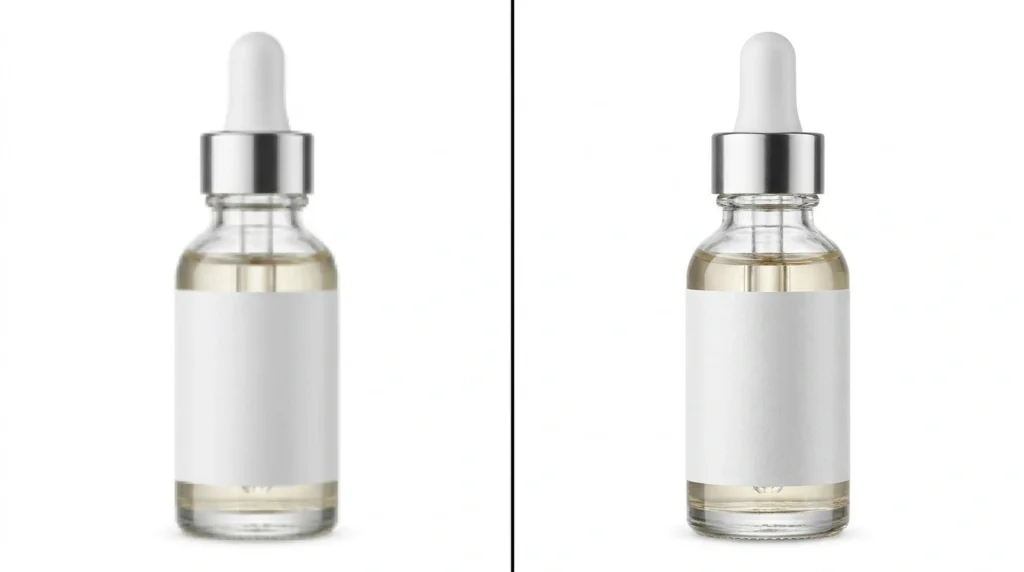
If you’ve ever stretched a small image in a basic editor, you know what happens: it gets blurry and blocky. An AI upscaler works differently. It studies the shapes, edges, and textures in your photo, then generates new pixels based on patterns it has learned from millions of other images.
A small photo of a leather handbag, for example, might come back with cleaner edges and more visible grain. Some tools also reduce noise or sharpen textures along the way.
Here’s the catch. The AI is guessing. It can add details that were never in your photo, like a slightly different stitch pattern or a warped logo. So a bigger image isn’t automatically a better one. You always need to check the result.
The goal is simple: keep the product and remove the distraction. Looking for more AI tools to create better product images and designs? Explore our complete guide to AI Product Image & Design Tools for ecommerce.
How Does AI Image Upscaling Work?
The process is pretty simple in most tools:
- You upload your photo.
- The AI analyzes its edges, textures, and patterns.
- It generates extra pixels to make a larger image.
- Optional features like sharpening or noise reduction clean it up.
- You review the result and download it.
Most tools offer 2× or 4× enlargement, and some go higher. A 1,000 × 1,000 px image becomes 2,000 × 2,000 px at 2×, or 4,000 × 4,000 px at 4×.
Those numbers only describe the output size. They don’t promise recovered detail, so always zoom in and check.
Why Ecommerce Stores Need Better Product Images
Quick Answer: Shoppers can’t touch a product, so they judge it by the photo. Sharper, higher-resolution images support zoom, ads, and a consistent catalog. AI enhancement can rescue some existing photos, but it can’t guarantee accurate detail, and it can’t fix a badly blurred original.
1. Customers want to inspect the details.
Picture someone buying a watch or a pair of shoes. They want to see the stitching, the finish, and the buttons. If the photo is soft, they can’t, and many will simply leave.
2. Your catalog looks more consistent.
When you source photos from several suppliers, some are crisp and professional while others are tiny and compressed. Upscaling can narrow that gap. It won’t fix different lighting, backgrounds, or colors, though. Those need separate editing.
3. You can reuse images across channels.
One photo may end up on a product page, in an email, on Instagram, and in an ad. A higher-resolution source gives you room to crop and resize for each. Just remember that a thumbnail and a banner need very different sizes.
4. It can save you a reshoot.
If a photo is clear but small, upscaling is often faster than organizing another shoot. But if the colors are wrong, the packaging text is unreadable, or the product is distorted, ask the supplier for a better file instead.
Practical tip: Start with the photos on your most important product pages. There’s no point processing images that are already good enough.
7 Best AI Image Upscalers for Ecommerce Photos in 2026
Quick Answer: The right upscaler depends on your budget, skill level, and workflow. Pixelcut suits product-focused editing, Upscale.media suits quick online fixes, and Let’s Enhance suits larger outputs. Photoshop and Topaz Labs give more control, and Upscayl is a free open-source option.
This is a practical shortlist, not a lab benchmark. No tool here is “the best” for every store. Features and pricing change often, so confirm details on each official site.
1. Pixelcut: Best for Product Sellers Who Want One Simple Editor
Pixelcut is an AI editing platform aimed at creators and small businesses. Besides upscaling, it covers product-image tasks like background editing, so you can fix and prepare a photo in one place.
Official website: https://www.pixelcut.ai/
Why it’s worth a look:
- Built with product photos in mind
- Upscaling and enhancement included
- Background and marketing-image tools in the same app
Best for: Small stores that want to improve images without a complicated workflow.
Keep in mind: Exports and usage limits depend on your plan. Check them before committing to a large catalog.
2. Upscale.media: Best for Quick, No-Install Fixes
Upscale.media runs in your browser. Upload a small image, enlarge it, download it. No software needed.
Official website: https://www.upscale.media/
Why it’s worth a look:
- Works online with common image formats
- Very simple upload-and-go process
- Good for one-off jobs
Best for: Sellers who only occasionally need to fix a supplier photo.
Keep in mind: Free allowances and enlargement options change. Read the current limits before you process a batch.
3. Let’s Enhance: Best for Larger Output Sizes
Let’s Enhance focuses on enlarging and improving images, including bigger outputs for promotional material.
Official website: https://letsenhance.io/upscaler
Why it’s worth a look:
- Enlargement for marketing and high-resolution uses
- Enhancement options beyond plain resizing
Best for: Stores that need large images for banners, print, or ads.
Keep in mind: Most product pages don’t need giant files. Check plan limits and output settings before you pay.
4. Topaz Labs: Best for Advanced Image Enhancement
Topaz Labs makes AI software for people who care a lot about photo quality. It gives you more control than the simple online tools.
Official website: https://www.topazlabs.com/
Why it’s worth a look:
- Enhancement tools built for photographic detail
- More control for demanding work
Best for: Photographers, designers, and teams that regularly handle important product shots.
Keep in mind: It may be overkill for routine web images. Check current pricing and hardware requirements first.
5. Adobe Photoshop: Best When You Need to Edit, Not Just Enlarge
Photoshop makes sense when a photo needs more than a size bump. You can resize, sharpen, correct colors, and retouch in the same file.
Official website: https://www.adobe.com/products/photoshop.html
Why designers like it:
- Fine control over every edit
- Color correction and retouching
- Fits into a wider design workflow
Best for: Designers who want to polish an image before publishing.
Keep in mind: There’s a learning curve, and AI features depend on your version and plan. If you only upscale now and then, it’s more than you need.
6. Upscayl: Best Free, Open-Source Option
Upscayl is open-source software you run on your own computer. Your images don’t have to be uploaded to a web service, which helps if your product photos are confidential.
Official website: https://upscayl.org/
Why it’s worth a look:
- Open source and desktop-based
- Local processing
- A good way to experiment without a subscription
Best for: People who are comfortable installing software and don’t mind some setup.
Keep in mind: speed and results depend on your computer. “Free” doesn’t mean effortless.
7. VanceAI: Another Option to Test
VanceAI offers AI tools for enlargement and enhancement, mostly through online processing.
Official website: https://vanceai.com/
Why it’s worth a look:
- Enlargement and enhancement tools
- Online processing
- Extra image tools for other editing jobs
Best for: Sellers who want one more tool to compare before settling on a workflow.
Keep in mind: Check credits, export limits, commercial-use terms, and subscription cost before using it regularly.
Which AI Image Upscaler Should You Try First?
- Want product-focused editing? Start with Pixelcut.
- Need a quick online fix? Try Upscale.media.
- Need larger outputs? Compare Let’s Enhance.
- Want more control? Look at Photoshop or Topaz Labs.
- Prefer a free desktop tool? Try Upscayl.
- Want one more comparison? Test VanceAI.
Before you pay for anything, run the same three to five product photos through your shortlist. Pick different materials: fabric, metal, plastic, and packaging with text. Then compare the results at full size and ask one question: does it still look like the real product?
AI Product Image Upscaler Comparison
Quick Answer: Compare upscalers on output quality, ease of use, supported formats, enlargement options, privacy terms, and total cost. A simple browser tool is enough for occasional edits. Larger stores should look for batch processing. Test your own photos before choosing.
| Tool | Main use | Best suited for | Check before choosing |
|---|---|---|---|
| Pixelcut | Product-focused editing | Online sellers | Feature access and batch limits |
| Upscale.media | Quick online upscaling | Occasional edits | Upload and export limits |
| Let’s Enhance | Larger image output | Marketing assets | Plan and output allowances |
| Topaz Labs | Advanced enhancement | Professional workflows | Software requirements and pricing |
| Photoshop | Detailed image editing | Designers | Subscription and feature access |
| Upscayl | Desktop upscaling | Technical users | Hardware compatibility |
| VanceAI | Image enhancement | Tool comparison | Credits and export terms |
This table compares general use cases, not measured image quality. Features and pricing change, so check each official site before buying.
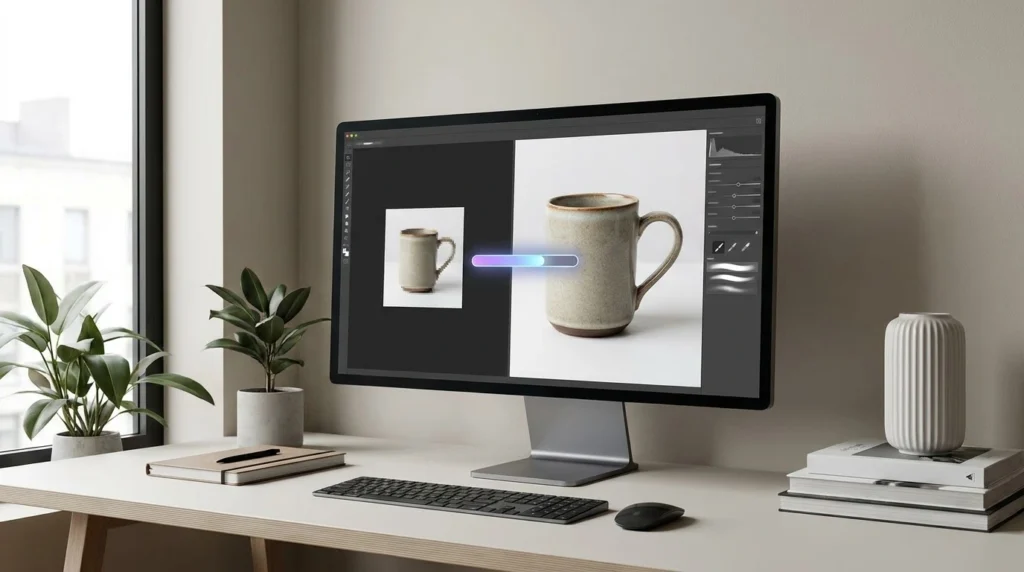
How to Upscale Ecommerce Product Photos
Quick Answer: Start with the best original you have, pick a modest enlargement level, and inspect the result for fake-looking details. Fix color if needed, export a web-ready version, and keep the original file so you can compare or go back.
Step 1: Find the best original
Use the highest-quality photo you’re allowed to use. If your supplier has a large original and a small preview, grab the original. Avoid screenshots and heavily compressed copies.
Step 2: Choose the smallest enlargement that works
If a 1,000 × 1,000 px image needs to be 2,000 × 2,000 px, 2× is enough. Don’t default to 4× or higher. Bigger settings make bigger files and can add strange, artificial detail.
Step 3: Check the details customers will look at
Zoom in on:
- Logos and labels
- Small text on packaging
- Jewelry edges and tiny parts
- Fabric texture and stitching
- Reflective surfaces
- Straight lines and outlines
If a logo looks warped or a part has changed shape, try a different setting or find a better source image.
Step 4: Correct color and lighting
Upscaling doesn’t fix bad lighting or wrong colors. Make careful adjustments, but don’t make the product look different from what the customer will receive. A black leather bag shouldn’t turn dark blue because of a filter.
Step 5: Export a web-ready file
Keep a high-quality master copy, then export a smaller version for your site. JPEG and WebP work well for product photos. PNG is better when you need transparency.
Use a descriptive filename like black-leather-handbag-front-view.webp, and write alt text that describes what’s actually visible: “Black leather handbag with gold-tone buckle, front view.”
Step 6: Test it on your site
Open the product page on both desktop and mobile. Make sure the image looks sharp, loads quickly, and displays at the right size. Keep the original until you’re happy.
How to Choose the Right Ecommerce Photo Enhancer
Quick Answer: Choose based on how many photos you process, what you sell, how good your source images are, and your budget. Small stores may only need a simple online tool. Bigger catalogs may need batch processing, saved settings, or an API. Accuracy should always come first.
Think about catalog size
A few images a week? An online tool is fine. Thousands of products? Look for batch processing, repeatable settings, and pricing that still makes sense at that volume.
Think about what you sell
Different products need different care:
- Clothing: Check stitching, patterns, and fabric texture.
- Jewelry: Check small edges, reflections, and stones.
- Electronics: Check buttons, ports, and printed labels.
- Cosmetics: Check packaging, colors, and ingredient text.
- Furniture: Check wood grain, fabric, and straight edges.
- Food: Avoid generated details that misrepresent the real item.
Decide if you need more than upscaling
If resolution is your only problem, an upscaler is enough. If you also need background removal, lighting fixes, or retouching, an all-in-one editor can save time. Pay for what you’ll actually use.
Compare the real cost
Don’t stop at the starting price. Look at how many images are included, maximum output size, watermarks, export quality, commercial-use terms, and what extra processing costs. A cheap plan can get expensive fast if you edit hundreds of photos.
Check privacy and file handling
Product photos can include unreleased designs. Read the provider’s privacy policy and retention terms before uploading. For confidential images, a local tool like Upscayl may be the safer choice.
Best AI Image Upscaling Settings for Online Stores
Quick Answer: Use the lowest enlargement that meets your display needs and keeps the product accurate. Keep an original master file, check important details at full size, and compress the exported image for the web. The ideal resolution depends on your theme, zoom needs, and device sizes.
| Image use | Recommended approach | Main priority |
|---|---|---|
| Product thumbnail | Match the actual thumbnail size | Fast loading |
| Standard product page | Follow your theme’s image requirements | Clarity and consistency |
| Product zoom | Use a larger source image when available | Accurate fine details |
| Social media graphic | Follow the platform’s current specs | Composition and clarity |
| Printed catalog | Calculate resolution from print size | Print quality |
These are general guidelines, not strict rules. Your platform or theme may recommend different sizes.
Is 4K resolution necessary for ecommerce photos?
Usually not. 4K can help for large displays or heavy editing, but most product thumbnails don’t need it. Bigger files also use more storage and can slow your pages if they aren’t optimized. Decide the largest size you actually need to show, then work backward.
Should you use 2× or 4× upscaling?
Start with 2×. Move to 4× only if you really need a larger file and the tool keeps the details accurate. More enlargement doesn’t mean better quality.
How can you keep image files small?
Save a high-quality master, then export a version sized for your site. Use sensible compression and responsive images where your platform supports them. The goal is a good balance of quality and speed, not maximum resolution.
Common AI Image Upscaling Mistakes
Quick Answer: Don’t use the maximum setting on everything, don’t trust generated details without checking, don’t ignore color accuracy, and don’t publish oversized files. A good upscale makes a photo more usable without changing what customers will actually receive.
Mistake 1: Assuming more pixels mean more accurate detail
AI can make an image look sharper while inventing details. Fix: Compare the result with a verified original, especially around logos, labels, and components.
Mistake 2: Using the highest setting every time
Aggressive enlargement can cause halos, odd textures, and distorted edges. Fix: Start low and increase only if needed.
Mistake 3: Ignoring color accuracy
Enhancement can shift contrast, saturation, and color. Fix: Check the final image against the real product or a trusted reference photo.
Mistake 4: Trying to rescue an unusable original
A tiny or badly blurred image may not hold enough information to rebuild reliably. Fix: Ask for a better source image or reshoot when accuracy matters.
Mistake 5: Uploading oversized images
Huge files add page weight without helping the customer. Fix: Resize and compress for the actual placement.
Mistake 6: Forgetting image rights
Finding an image online doesn’t mean you can use it commercially. Fix: Confirm you have permission to use and edit the photo, and check the tool’s commercial-use terms.
Does AI Image Upscaling Help Ecommerce SEO?
Quick Answer: It can help indirectly by giving you clear, properly sized product photos. But upscaling alone doesn’t guarantee better rankings. Search visibility also depends on content quality, technical performance, image context, and accessibility. Accurate alt text, descriptive filenames, and sensible compression still matter.
A sharper image makes a page look better, but no tool can promise a higher Google ranking. Think of image quality as one piece of a bigger SEO strategy.
Use descriptive filenames
- Weak:
IMG_5832-final-new.webp - Better:
brown-leather-wallet-open-view.webp
Don’t stuff the same keyword into every file name. A clear description beats a string of search terms.
Write useful alt text
Alt text should describe what’s actually in the image: “Brown leather wallet with multiple card slots, shown open.” Don’t force a focus keyphrase into every alt tag just to please a plugin. If it doesn’t describe the image, leave it out.
Optimize dimensions and formats
Pick dimensions that match your layout and compress without visible artifacts. WebP is a good choice for product photos, and JPEG and PNG still have their place depending on the image.
Keep product pages fast
Oversized images slow down pages, especially on mobile. After upscaling, create web-ready versions and test your page speed. Highest resolution isn’t always best.
Connect it to your wider SEO plan
Great images can’t carry a weak page. Pair them with clear descriptions, accurate specs, easy navigation, and structured data. For the bigger picture, read our AI Tools for Ecommerce: Complete Guide and our Best AI Tools for E-commerce guide.
Frequently Asked Questions
Quick Answer: AI upscalers can enlarge small photos and make them look sharper. The right one depends on your source image, size needs, editing needs, and budget. Before publishing any enhanced image, check that the AI hasn’t changed important product details.
1. What is the best AI image upscaler for ecommerce photos in 2026?
There’s no single winner. Pixelcut is a good start for product-focused editing, Upscale.media for quick online fixes, and Let’s Enhance for larger outputs. Test your own photos before you commit.
2. Can AI upscale product photos without losing quality?
It can produce a larger, sharper-looking image, but it can’t promise perfect quality. Some tools invent details that aren’t accurate, so check logos, text, textures, and edges.
3. Is there a free AI image upscaler for ecommerce?
Some services offer limited free processing, and open-source tools like Upscayl are free to run on your own computer. Terms change, so check them before using a tool for commercial work.
4. Is 2× or 4× upscaling better for product photos?
Use 2× when it gives you enough pixels. Use 4× only when you truly need a bigger image and the result still looks real. Higher doesn’t automatically mean better.
5. Can AI improve blurry product photos?
It can improve perceived sharpness and rebuild some detail. But a heavily blurred photo stays unreliable, especially with small text or fine patterns. When accuracy matters, get a better original.
6. Does AI image upscaling improve Google rankings?
Not directly. It helps you prepare clear product images, but rankings depend on content quality, technical SEO, page experience, and image optimization.
7. Can I use AI-upscaled images on Shopify or WooCommerce?
Generally yes, as long as the images meet the platform’s requirements and you have the rights to use them. Check current size limits and any marketplace policies.
8. What is the best image format for ecommerce product photos?
JPEG and WebP are common for photos. PNG works well when you need transparency. Choose based on compatibility, file size, and the quality you need.
9. Can an AI upscaler change my product’s appearance?
Yes. It may alter textures, edges, small parts, or lettering. Compare the result with a verified original and never publish an image that misrepresents the product.
10. Should I upscale every product image in my store?
No. Focus on images that are too small or soft for how you use them. If a photo is already clear and the right size, extra processing can do more harm than good.
11. Will upscaling make my website slower?
It can, if you publish oversized files. Resize and compress the final version, use responsive images where possible, and test your page speed.
12. Can I upscale hundreds of product photos at once?
Some tools offer batch processing or an API, depending on the provider and plan. Test consistency across product categories and work out the cost before you process your whole catalog.
Final Thoughts
An AI image upscaler can help ecommerce businesses improve product photo resolution while keeping images clear and suitable for online stores.
AI upscaling works best when your photos are decent but too small for where you need them.
Which tool fits depends on how you work. Pixelcut is handy for product-focused editing, Upscale.media for quick online jobs, and Let’s Enhance for larger outputs. Photoshop and Topaz Labs suit more demanding workflows, and Upscayl is a solid free alternative.
You don’t have to fix your whole catalog at once. Pick a few representative photos, run them through two or three tools, and compare at full size.
Most important, make sure the final image still matches the real product. Customers need a clear photo, but they also need to trust it.
The goal isn’t a bigger image. It’s a clearer one that still tells the truth about what you’re selling.
For more, read our guide to AI Product Image Generator Tools in 2026, covering background replacement, lifestyle scenes, and product-image generation. AI Product Image & Design Tools & AI Product Image Generator Tools & AI Background Remover for Product Photos